Manage Your Organization
Your Epicenter organization is where you manage your projects, the admin team, and users.
In an organization, you create team projects that can require authentication. That means you can give each end user their own username and password so only authorized participants can access your application.
To learn more about project access levels, read Access levels
To create an organization in Epicenter, reach out to sales@forio.com.
Admin team
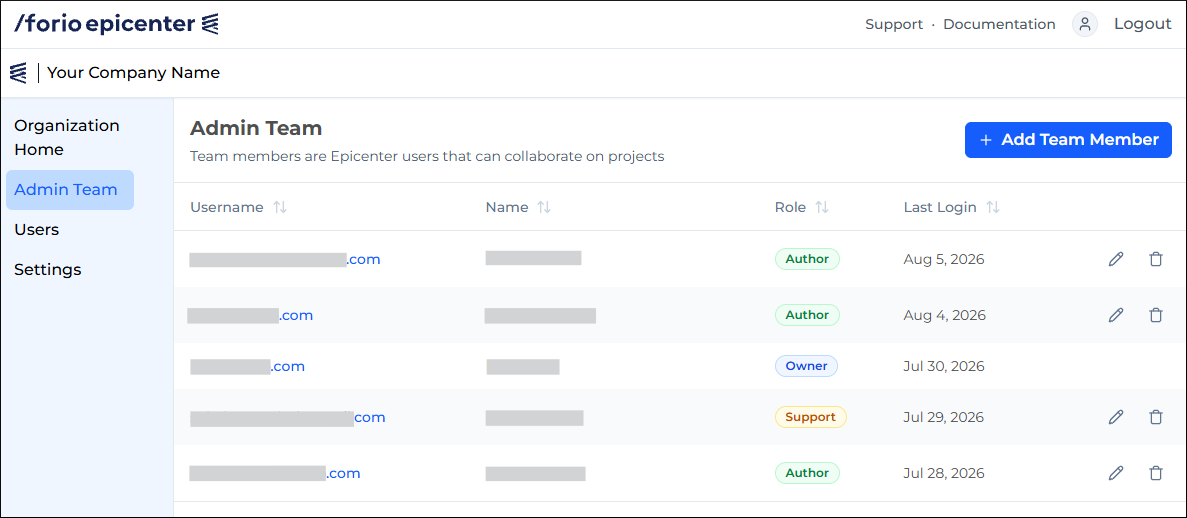
Your Epicenter team members are the organization admins.
An admin can have one of these roles:
- SUPPORT: can manage workshops and users.
- AUTHOR: can manage the organization, create and edit projects, and perform all the tasks of a Support admin.
- OWNER: Has full control over the account.
By default, an Epicenter account admin cannot have the same username as a user. You can change this in account settings.
For information on managing your app users, read Managing users.
To manage your Epicenter team:
- Log in to your Epicenter organization.
- In the left-side navigation panel, click Admin Team.
Adding team members
To add a team member:
- Go to the Admin Team page.
- Click + Add Team Member.
- On the next screen, enter an email address for the team member you want to invite.
- Select role.

- Click Invite.
The new team member will show up on your Admin Team page once they accept the invitation.
Accepting an invitation
You receive an email with an invitation to join Epicenter.
Creating an account
If you don't have an Epicenter account, the email will ask you to create one.
- Click the create-an-account link in the email.
- A sign-up page opens with your email filled in.
- Optionally: to sign up with a different email, click the arrow in the email field. Note that your team will need to send you a new invitation.

- Fill out the sign-up form and click Sign Up.
Modifying membership
To edit team membership, go to the Admin Team page.
- To modify an admin's role, click the pencil icon.
- To remove an admin, click the trash can icon.
Personal accounts
Each admin gets a personal account where they can experiment and learn to create projects.
To learn about projects created in your personal account, read Manage your personal projects.
Creating a personal account
If you are not part of an admin team, you can sign up for a personal account:
- Go to https://forio.com/epicenter.
- On the log-in tile, click the sign-up link.
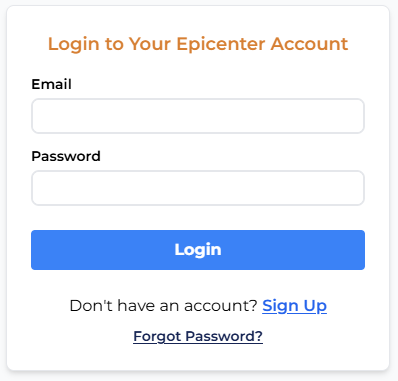
- Fill out the sign-up form.

- Click Sign Up.
Organization settings
To edit organization settings:
- Log in to Epicenter.
- On the left, click Settings.

User password complexity
You can set the password complexity requirements for your Epicenter app users.
- Go to your organization settings.
- Expand More Options.
- Under Passwords, select a password complexity setting.
- Update the password expiration and reuse policies.
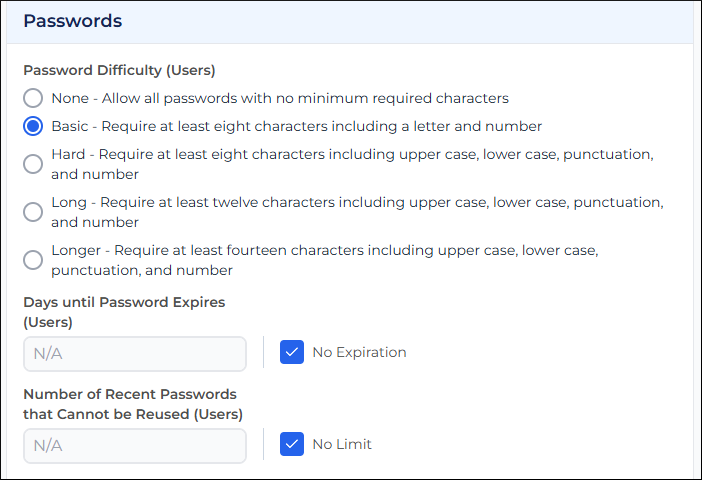
- At the bottom of the page, click Save Settings.
User and admin usernames
To allow an Epicenter admin to log in to a simulation as a user:
- Go to your organization settings.
- Expand More Options.
- Change the User and Admin Usernames setting.

- At the bottom of the page, click Save Settings.
Create a secret key
To create the secret key to be used for application-level authentication, you must be the account owner.
- Go to your organization settings.
- Expand More Options.
- Under Account API Key, click Set Shared Secret Key.

This setting is not available unless you are the account owner.
You cannot see the secret key in the UI. If you lose it, you must create a new one.