Play the Game
Each participant logs in to run a desk on a trading floor. Once a participant locks their desk, they can read the public signal and pitch of every other desk in the episode, but private notes remain sealed.
If you haven't assigned users to roles when creating the project, you must do so before running the project for the first time, as described in Assign roles
Access the application
- Run the application as described in Create the Project.
- To play the game, log in as a participant.
- To create new run configurations, log in as a facilitator, or log in to Epicenter.
Play the game
As a participant
When a participant logs in, they see their desk. The desk has three fields:
- Signal: the market signal(Build, Partner, or Wait).
- Public pitch: a one-line message visible to all other desks after locking.
- Private note: internal reasoning that is never shared with other desks.
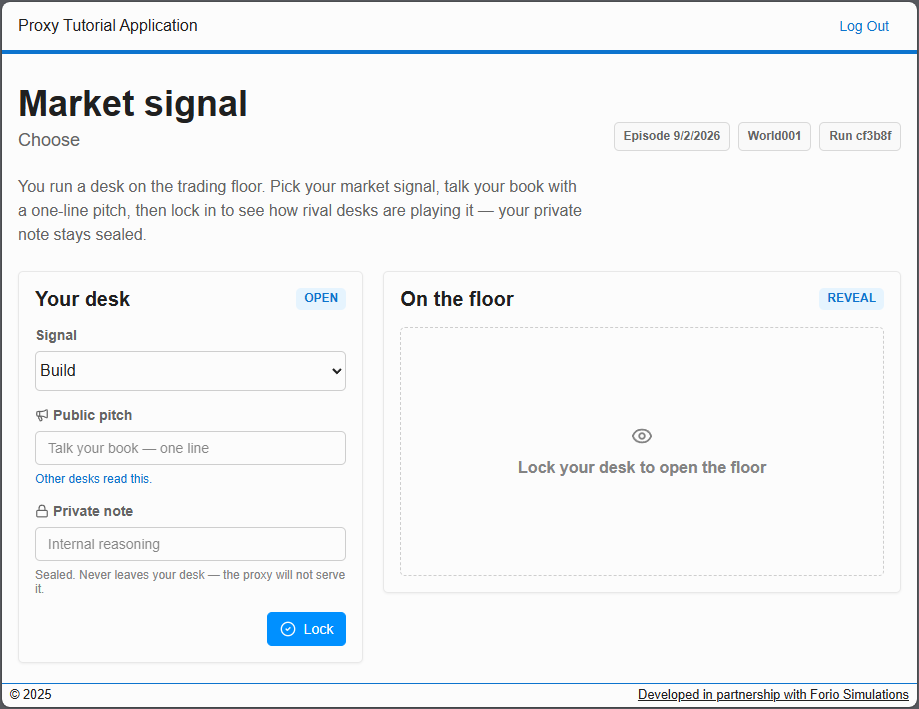
The participant chooses a signal, writes a pitch, optionally adds a private note, and clicks Lock to submit.
Once locked, the On the floor panel reveals the public signal and pitch of the other desks, fetched through the proxy. Desks that have not yet been locked show Not locked. The participant's private note remains on their desk only and is never displayed on the floor table.
When another desk locks, the floor table refreshes automatically because the locked desk publishes a push notification and all open sessions re-read that desk's public pitch through the proxy.
To change a submitted decision before the episode ends, click Change to unlock the desk, edit the fields, and lock again.
As a facilitator
To create a new run configuration, click New Episode. All desks reset, and participants begin a fresh round.

After you create a new episode, you must log in to Epicenter and assign worlds for the latest run configuration.