Play the Game
Three participants log in to the application to manage the operations of a bike shop, each according to their role: Sales, Operations, and Finance.
If you haven't assigned users to roles when creating the project, you must do so before running the project for the first time as described in Assign roles
Access the application
- Run the application as described in Create the Project.
- To play the game, log in as a participant (Sales, Operations, or Finance).
- To view run data or create new run configurations, log in as a facilitator.
Play the game
As a participant
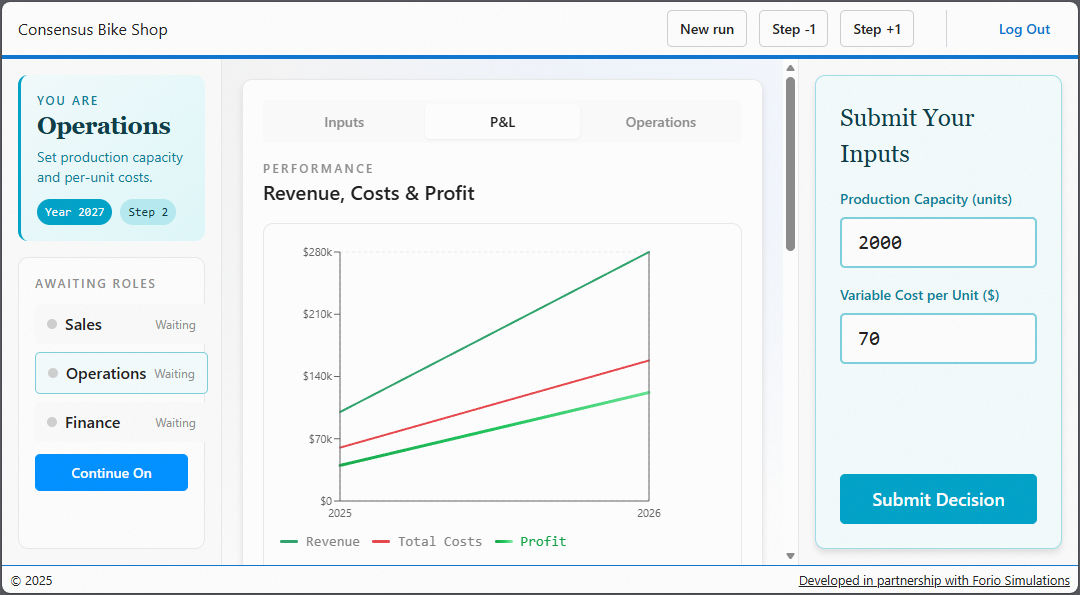
Each participant lands on their role's decision screen and sees:
- Which role they are playing (Sales, Operations, or Finance), the current decision year, and a short description of that role's responsibility.
- Three tabs of performance reports and an income statement for the previous year.
- A decision form scoped to the role's inputs only:
- Sales sets Price and Demand.
- Operations sets Capacity and Variable Cost.
- Finance sets Fixed Costs.
- An Awaiting Roles panel showing which of the three roles have submitted decisions for this step and which are still pending.
Submitting your decision
Click Submit Decision. The input form is replaced with a "Decision submitted" confirmation, and you can undo the submission to change your inputs as long as the round hasn't advanced yet.
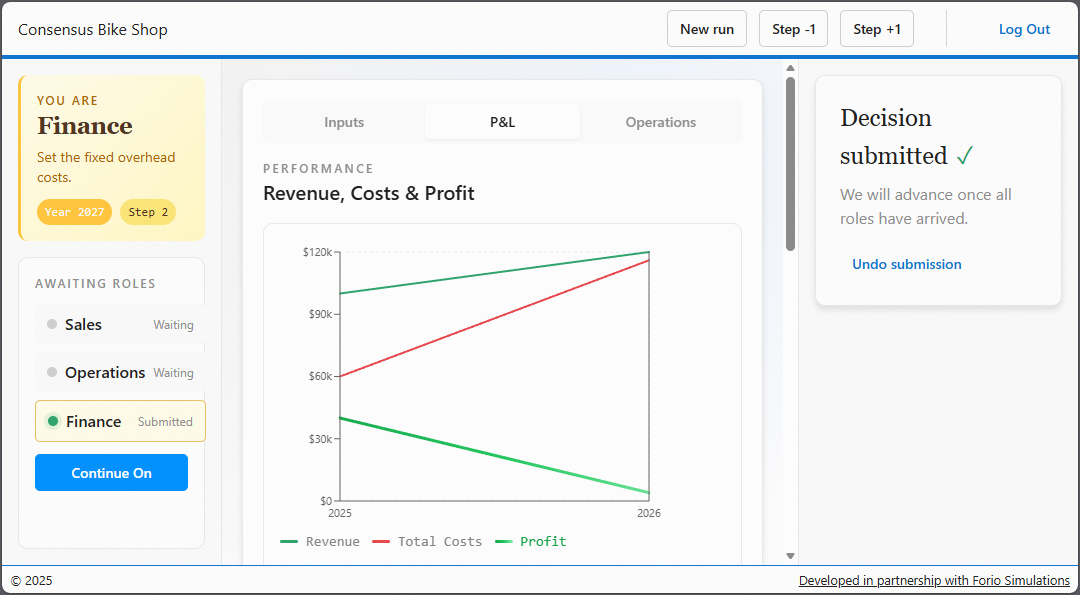
Each step also has a countdown timer. If it reaches zero while a role is still missing, the remaining participants see a Continue On action. Submitting it closes the round and advances the model using the missing role's default decision, so the game is never blocked by an absent player.
Once all three roles have submitted, the consensus barrier triggers, the model advances, and every participant sees the updated performance report for the new step.
Starting a new run
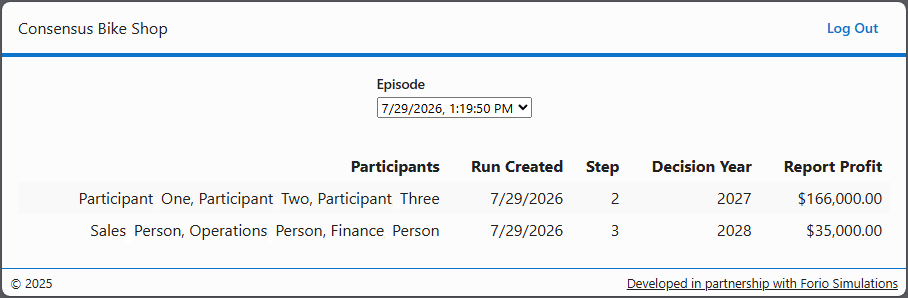
At any point in the game, you can start the game from the beginning by clicking New Run at the top of the page. The data for the current run will be preserved and displayed on the facilitator page.
As a facilitator
Select an episode from the dropdown to see a table of every run in that episode.
To create another episode:
- Open the project in Epicenter.
- On the Workshops page, click your workshop.
- Click Multiplayer Assignments.
- Expand the Select Scope panel.
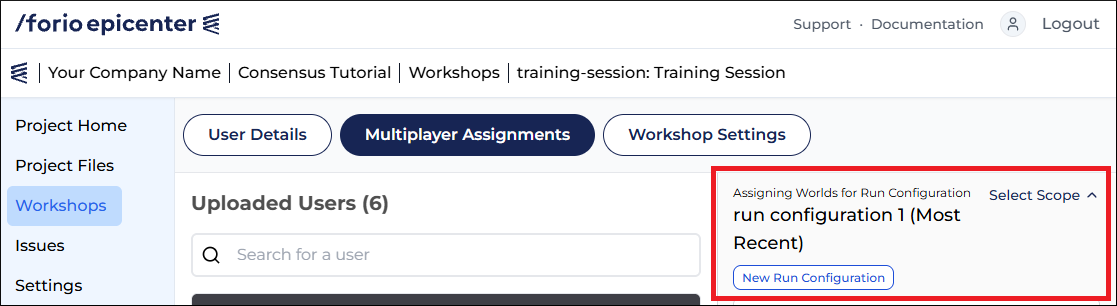
- Click New Run Configuration.
- Enter a name for the new configuration.
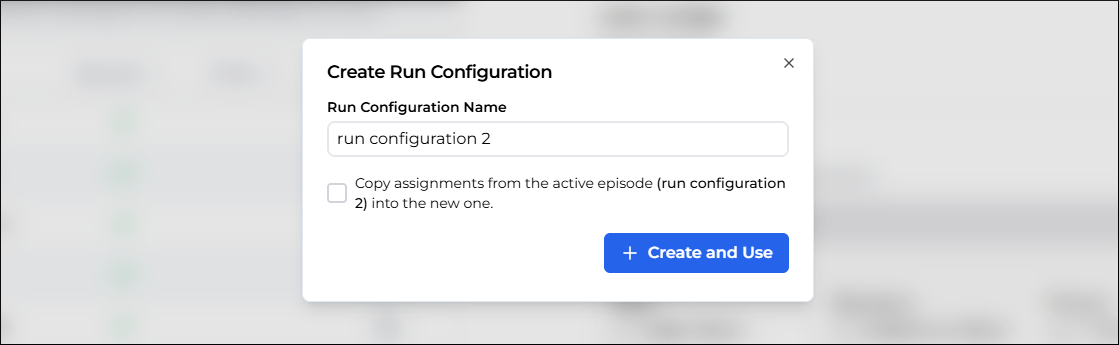
- If you don't need to change role assignments, you can select to copy assignments from the active configuration.
- Click + Create and Use.
To learn more, read Run configurations.