Play the Game
Participants log in to update a bike's sale price and view yearly profits. The facilitator UI displays the participants' results.
The app creates the initial episode when a facilitator logs in for the first time. Participants can then log in and begin playing. Open the app as a facilitator first.
Access the application
- Run the application as described in Create the Project.
- Log in as a facilitator to create the first episode.
- Log in as a participant to play the game.
Play the game
The participants of the simulation set the price of a bike for a year to see how price changes affect yearly revenue and profit.
As a participant
Each participant sees a chart of the bike shop's yearly profit and table that contains detailed financial results. Tha data is displayed for the last three years in the current run.
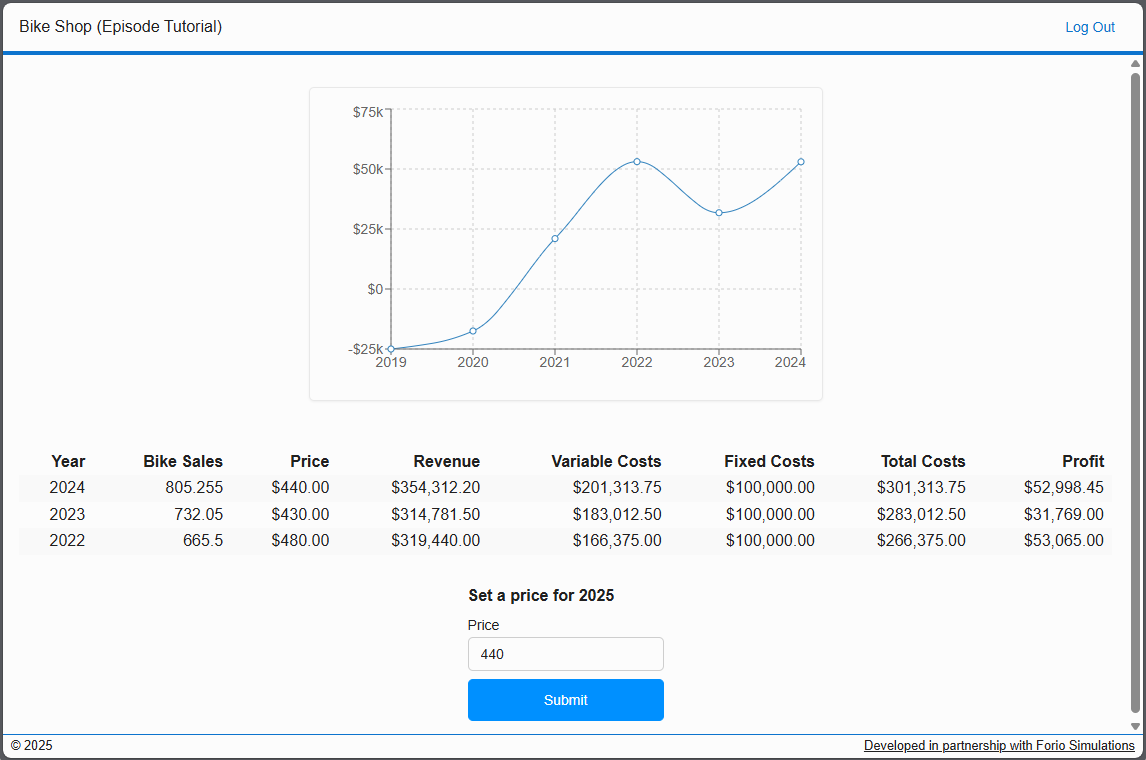
To set the price for the next year, enter a value in the Price field and click Submit. Submitting the form advances the simulation by one year.
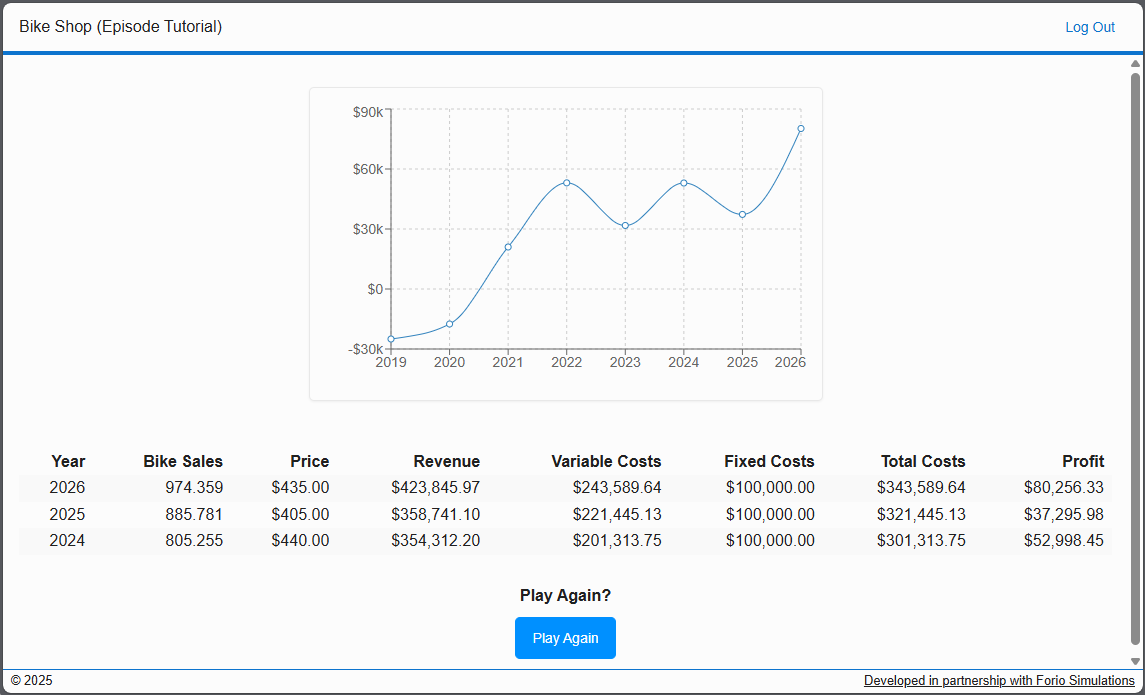
At the end of the game, to start a new run, click Play Again.
As a facilitator
The first episode is created automatically when you log in as a facilitator for the first time.
View participant results
To view the participant results:
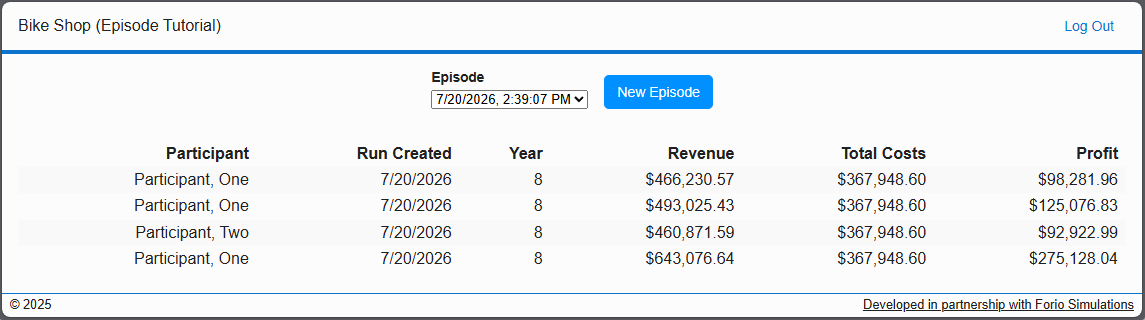
- Log in as a facilitator. The facilitator page displays results for all the participant runs in the latest episode by default.
- To view a different episode, made a selection in the Episode drop-down.
Create new episodes
To create a new episode, click New Episode.
Every connected participant is moved onto the new episode automatically — a participant's current run belongs to whichever episode is current, so nothing further needs to be done to reset their progress.